Preparing an accurate Bill of Quantities (BOQ) is one of the most important steps in government tender bidding. A BOQ helps buyers and bidders clearly understand the scope of work, required materials, quantities, and estimated costs involved in a project.
A properly prepared BOQ allows contractors and suppliers to submit accurate price quotations and helps government organisations compare bids fairly.
Many tender rejections happen because of incorrect quantities, missing items, or pricing errors in BOQ submissions. Understanding how to prepare a BOQ correctly can help businesses submit more accurate and competitive bids.
This guide explains what a BOQ is, its importance, required components, preparation steps, common mistakes, and best practices for government tender bidding.
BOQ stands for Bill of Quantities.
It is a detailed document that lists all materials, services, labour requirements, quantities, and estimated costs required to complete a project.
In government tenders, the BOQ acts as a pricing document where bidders provide their rates against specified items.
A typical BOQ includes:
The buyer uses the BOQ to evaluate different bids and compare submitted prices.
A BOQ provides clarity between the buyer and bidder about project requirements.
A detailed BOQ allows bidders to calculate the actual project cost before submitting their quotation.
Without a proper BOQ, bidders may miss important requirements and submit inaccurate prices.
Government organisations receive multiple bids for the same project.
A standard BOQ format allows buyers to compare:
This creates a more transparent evaluation process.
A detailed BOQ clearly defines what work or supply is required.
It helps reduce disputes related to:
A BOQ generally contains several important fields.
| BOQ Element | Purpose |
| Item Description | Explains the required work or material |
| Quantity | Specifies the required amount |
| Unit | Defines measurement method |
| Rate | Cost per unit |
| Total Amount | Final calculated value |
| Remarks | Additional specifications or notes |
Each section should be reviewed carefully before submitting a tender bid.
Before preparing a BOQ, carefully review the tender documents.
Check:
A clear understanding of requirements helps avoid calculation mistakes.
Prepare a complete list of materials, services, or activities required for the project.
For example, a construction BOQ may include:
Missing items can affect project costing and bid accuracy.
Each BOQ item should include:
Common measurement units include:
Accurate quantity calculation is essential because pricing depends on these details.
After listing quantities, bidders need to calculate the cost per unit.
The rate may include:
Rates should be realistic and competitive.
The total amount is generally calculated as:
Quantity × Unit Rate = Total Cost
Review all calculations carefully before final submission.
Before uploading the BOQ, check:
A small mistake in BOQ can affect bid evaluation.
Although formats may vary depending on the department and project type, a common BOQ structure includes:
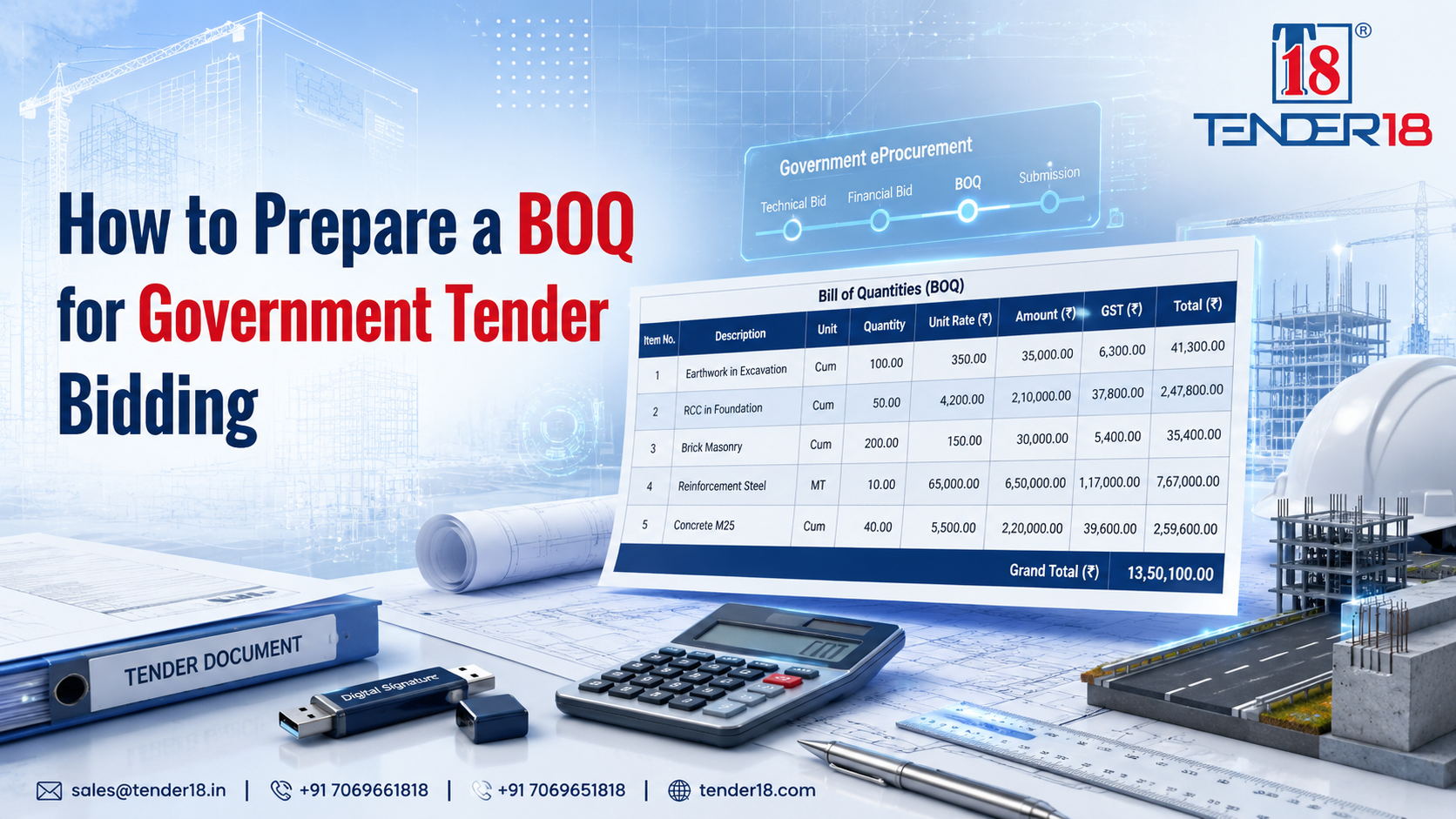
| Item No. | Description | Quantity | Unit | Rate | Amount |
| 1 | Item details | 100 | Nos | ₹500 | ₹50,000 |
| 2 | Material details | 50 | KG | ₹200 | ₹10,000 |
Government departments may provide specific BOQ templates that bidders must follow.
Always submit the BOQ in the format mentioned in the tender document.
Wrong quantities can create pricing errors and affect project execution.
Always verify measurements before submission.
Leaving out required materials or activities can result in an incomplete quotation.
Review the complete scope of work before preparing the BOQ.
Rates should consider:
A BOQ should match the technical requirements mentioned in the tender.
Submitting prices without considering specifications can create compliance issues.
Before submission, check the entire BOQ carefully.
Verify:
Reviewing similar projects can help understand common requirements and pricing structures.
Keep records of:
This helps prepare future BOQs faster.
Every tender may have different requirements.
Always follow:
Understanding the complete GeM bidding process can help businesses prepare better submissions and avoid common bidding mistakes.
Many bidders confuse BOQ with the complete tender document.
| BOQ | Tender Document |
| Contains quantity and pricing details | Contains complete tender requirements |
| Used mainly for cost submission | Includes technical, financial, and legal requirements |
| Focuses on project items and rates | Covers complete bidding conditions |
The BOQ is usually one part of the complete tender documentation.
Finding suitable tenders requires regular monitoring because government departments publish new requirements across different sectors.
Businesses can explore relevant government tender opportunities based on their industry and eligibility.
Before participating, businesses should ensure they understand tender requirements, documentation, and submission procedures.
Preparing tender documents requires careful attention to technical requirements, pricing details, and submission rules.
Tender18 provides tender-related information and support to help businesses identify suitable opportunities and manage their participation process.
Businesses requiring assistance with tender preparation and submission can explore tender bidding services according to their requirements.
Looking For Complete Tender Bidding Consultancy? Our Technical Experts Will Help You Prepare And Submit Your Tender Successfully.